Upgrade now
Our site uses cookies. By continuing to use our site you are agreeing to our cookies policy.
Our site uses cookies. By continuing to use our site you are agreeing to our cookies policy.
Help for CloudMe Sync.
With CloudMe on your desktop computer, you will always have your files accessible, be able to collaborate in folders, and share any file or folder on the fly instead of attaching large files to emails. The CloudMe blue folder will be available by default and have all its content synced.
CloudMe Sync is the CloudMe software for your computer. Once you have installed CloudMe on your computer, a CloudMe folder will be created under your My Documents / Documents folder. It will also be available as a favourite in your file system. Anything you put in this folder will be accessible everywhere you have CloudMe, including other computers, mobile phone, tablet, web, NAS and even through your smart TV. We often refer to this folder as the CloudMe blue folder – an intelligent box to drop anything in you want accessible everywhere.
Finding the application
After installing CloudMe on your computer, a new icon will appear in your taskbar close to the clock. On Windows it might be hidden under the small arrow that points upward, showing hidden icons. Right click the CloudMe icon to see the menu with further options.
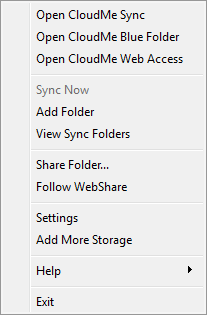
Here you can choose to open CloudMe Sync, which then will open the application. From here you can see all folders that you have chosen to sync with this computer, add new folders, share folders, and see all folders that other people have shared that you are following. The user interface is familiar to how the web application and mobile apps work.
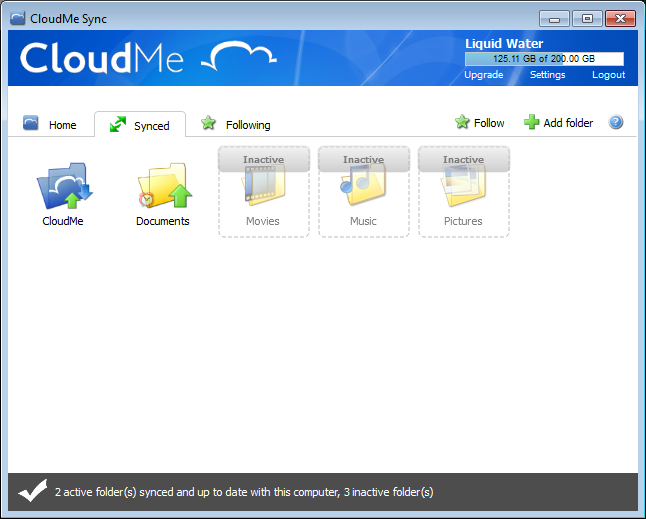
The application make it easy to manage your account and minimizes the need to login through a web browser. The application also give you single sign on access to folders that you have not synced to your computer by double clicking on them, which then will open them in a web browser.
Context menu in file system
On Windows computers, CloudMe is also available when you right click any folder. A new menu item called CloudMe will show up, allowing you to share the folder, add the folder as a sync folder, or invite people to collaborate. If you right click a file, you will be able to share it as a single file through a http link.
Activating a folder
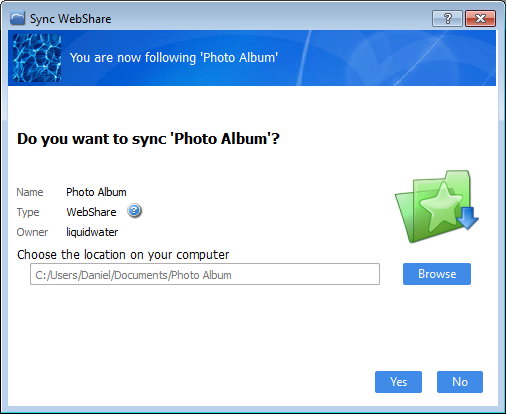
With CloudMe you can choose to sync any folder. If you install CloudMe on multiple computers, the folders you add on one of them are not automatically synced to the other computers. They will appear under the Synced-tab as Inactive. Hover the folder and click on the Play symbol or right click the folder and choose Activate to sync the folder to a new computer. You may also choose to sync any followed folder by choosing Sync, which then automatically will activate the folder on your computer.

This enables you to decide which folders to sync to your work computer and which folders that only should be synced between your home computers or made available on your mobile devices.
Sharing a file or folder
Files and folders within the default CloudMe folder are automatically synced with the cloud, which means that if you choose to share a folder within it, it will be immediate. With CloudMe you can also choose to share arbitrary files and folders on your computer, but they need to be synced with CloudMe first. A progress indicator will display the upload progress and allow you to finalize the sharing as soon as it has completed. You can share by right clicking a folder or open the CloudMe application and choose Share Folder. If the folder or file already is in the cloud, you can also use the web application or mobile application to share. Please note that if you share a folder, any subsequent changes or additions you make within the folder, will also be shared.
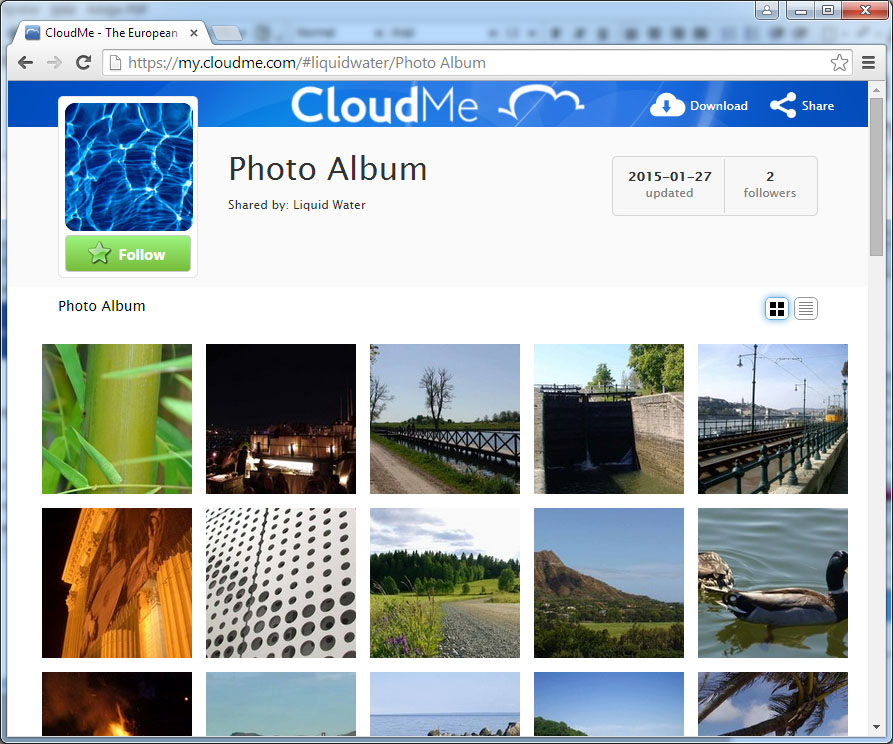
Anything you share will be accessible through a http link and possible for people to Follow and thereby add to their account. You can also set a password to make the link private. If you want people to find what you share, choose to publish it on your profile, it will then be available on https://my.cloudme.com/user_name.
Collaborating in a shared folder
It is easy to collaborate with other people through CloudMe. Create a folder on your computer, choose Share Folder and select Collaboration and enter a password. Now you can invite other people to work with you and any changes either of you make will appear in the folder you shared. The people you invite will also need to have a CloudMe account and the CloudMe application installed on their computers. They will also have to choose to Follow the folder you shared and choose to sync it to their computer. If they already have a CloudMe account and you invite them by typing their username, your invitation will popup on their computer.
How to backup files
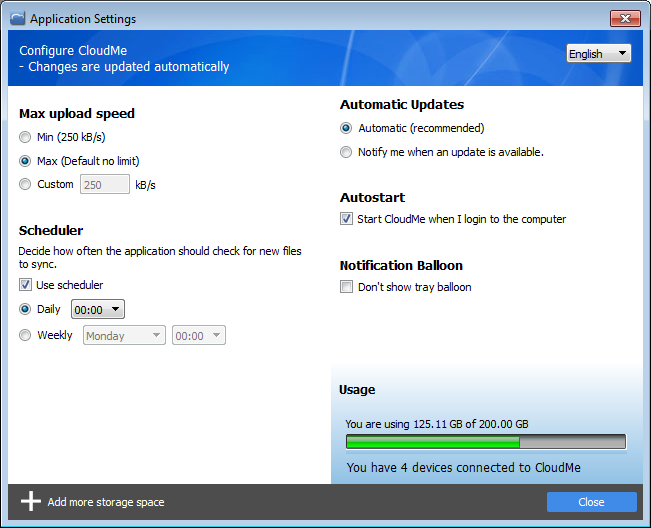
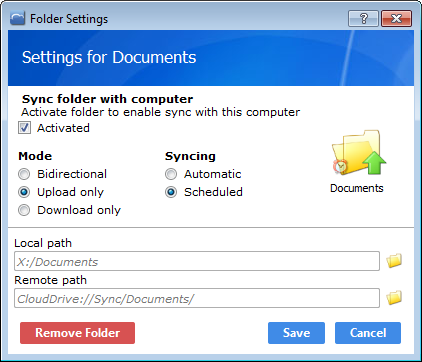
When you add a folder to CloudMe, it will by default be set to bidirectional sync. This means that any changes you do on your computer or in the cloud will be mirrored. For instance, deleting content in the cloud, on a mobile device or on another computer will also delete it on your computer. This make all cloud storage services that provide syncing as the only way to connect a folder a very bad choice to use for backup purposes. With CloudMe you can change the syncing mode by going into folder settings, which you will find by clicking the cogwheel icon on a folder or choosing Settings in its right click menu. Change the sync mode to upload only for all folders you want to backup. If you do not need to make a backup as soon as a file has changed, you can also change syncing to Scheduled, allowing you to have your backups done daily or weekly. You can change the scheduled time under the applications main settings.
Adding more storage space
If you sync or backup large folders you will eventually run out of free space. You can invite some friends to CloudMe to get more free space or upgrade to a premium plan. Please note that if you run out of space in your plan, you will not be able to upload more files or edit files. You might have to inactivate synced folders and login using the web application and delete content in order to get under the allowed account size to be able to edit documents again.
Get more space...Use CloudMe as an external hard drive
The installed CloudMe application is designed to sync and backup content between your computer and the cloud. However, in some cases, and especially with the larger premium plans of 500 GB or more, you might want to use part of your account as an external hard drive – without taking up any space on your computer. This will allow you to offload things that you do not use frequently from your computer and save hard drive space. In this case, we recommend that you use the CloudMe folder for files that you do want to sync across all your computers and devices, and use our WebDAV support to mount CloudMe as a network drive. Through WebDAV you will be able to access your entire Cloud Drive, Shared folders and Following folders, as if it were an external hard drive. WebDAV will not take up any hard drive space on your computer.
Syncing music, movies and photos collections
Keep your music, iTunes library or photos where they are. If you move them into the CloudMe folder, it will most likely break the functionality of other software on your computer. With CloudMe you can just choose to add these folders as new sync folders or choose to activate the default Movies, Music or Pictures sync folders and associate it with the folders on your computer. This also work well with media libraries stored on other hard drives or partitions.
Collections of music, movies and photos does not often change, which make immediate syncing of any changes in these folders a little bit of a waste of system resources. It is therefore recommended to change the sync mode of these folders to upload only and scheduled, making the changes update daily or weekly. It will also protect your collections of media from accidental deletes from your phone, tablet or other computers you have synced your media folders to. You can change the settings of a folder by clicking on the cogwheel icon or right click the folder and select Settings.
How to migrate from Dropbox or OneDrive
If you want a safe and secure cloud storage solution protected by European privacy laws, moving your existing cloud storage to CloudMe is a good idea. Just move the contents of the Dropbox or OneDrive folder into the CloudMe folder. CloudMe will then start syncing and uploading all your files. The CloudMe folder is available through a shortcut on the Windows desktop and available as a favourite in Windows Explorer and Finder on Mac. Never add the Dropbox or OneDrive folder as a sync folder to CloudMe, it may create unexpected behaviour in both services.
How does the synchronization work?
CloudMe monitors any change made within a synced folder. If a file is updated, the changes are sent to the cloud, which then will also keep a copy. If you have more than one computer connected to CloudMe, the changes will also be propagated to all of them were the folder is activated. The mobile apps as well as web application will work directly with the copy stored in the cloud. If you delete a file or folder on your local computer or remove the copy in the cloud, it will be reflected on all devices. It is like having a shared file system between all your devices.
Sometimes a conflict will occur. This is often a result of one of the computers being without a network connection and then the same file is changed on another computer with a network connection. The next time the offline computer goes online the conflict will occur. If this happens, CloudMe will store both files in the cloud and let you decide which one to use.
Settings
Within the settings page you can change the language of the application, set a schedule for folders that are not set to sync immediately and also impose a network bandwidth throttling restriction. Throttling is important to use if you feel that the sync is consuming too much of your available bandwidth. If you feel that syncing is too slow, set max upload speed to max.